Technical requirements and compatibility
Haahtela PRIS is a SaaS-based system that works with up-to-date Chromium-based browsers (e.g. Google Chrome, Microsoft Edge).
The system can also be used with the latest versions of Firefox and Safari, with the exception of some minor styling and layout differences.
Sign-in
You can sign in to Haahtela PRIS via the internet at:
The site opens to the Haahtela Group homepage. In the top navigation bar, you will find the Sign in menu, which contains links to Haahtela’s software services. Select PRIS/RES.
A direct link to the sign-in page is:
https://www.haahtela.fi/pris-res-kirjautuminen
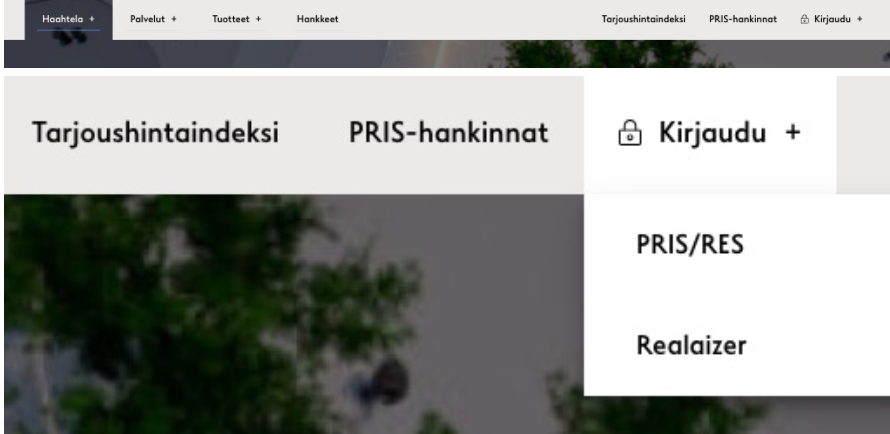
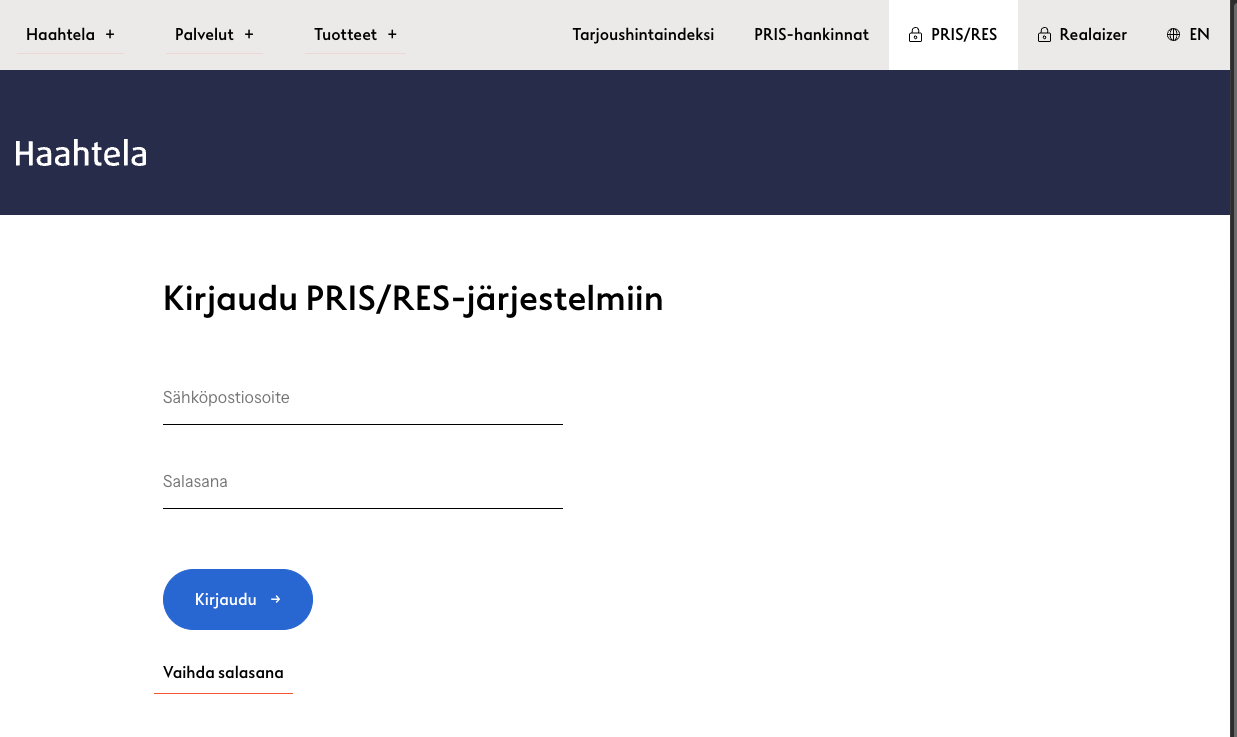
On the sign-in page, enter your username and password in the designated fields.
If the user has the same credentials for both Haahtela PRIS and RES, a selection menu will open after signing in, allowing the user to choose which service to access.
After selecting the service, the main view of the Haahtela PRIS system opens to the project that was active during the previous session.
Setting and changing the password
Changing a password or setting a password for a new user can be done from the same view used to sign in, by selecting Change password.
Changing or setting a password does not require knowledge of the previous password.
User interface structure
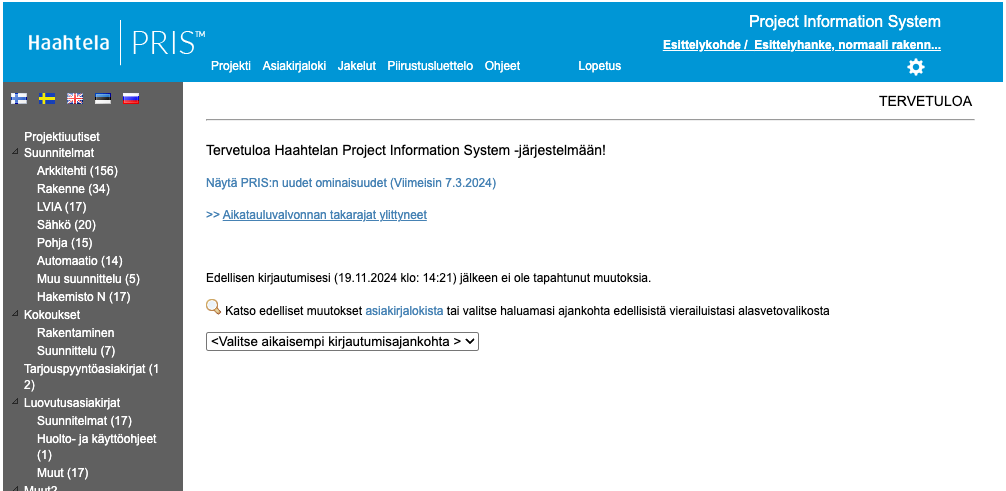
The user interface consists of functions located in the top navigation bar and a folder tree on the left-hand side.
The folder tree contains all documents stored in the PRIS system. These documents can be managed (opened, saved, and distributed) according to the access rights granted to the user.
Welcome page
The Welcome page displays changes that have occurred in the project since the previous login.
In addition, the page shows all requests for quotation that have been sent to the user’s email address.
If the user does not have access rights to any projects, the Welcome page will only display a list of received requests for quotation.
My details
The system reminds users to complete their personal details upon signing in.
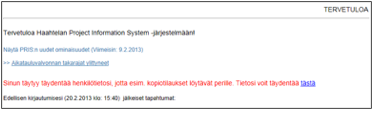
Each user must complete their address information to ensure that any copy orders can be delivered to the correct address.
Personal details can be completed via the Welcome page, which opens after signing in to a project.
Instructions
The Instructions section in the main view contains the Haahtela PRIS user guide.
The section also includes useful links and contact details for Haahtela’s software support.
Logout and notifying about document changes
Haahtela PRIS does not send automatic notifications when documents are added, edited, or updated.
If changes made during the session need to be communicated to other project participants, the session must be ended by selecting Logout.
This opens a view asking whether notifications about the changes should be sent.
Documents that were added, updated, edited, or deleted during the session are displayed as a list. Notifications about these changes can be sent to selected project users.
After selecting the recipients, the following actions are available:
- add recipients by entering their email addresses
- edit the email subject and message content
By selecting Send and exit, the email is sent to the recipients and the user is logged out of the system.